Checkbox
A Checkbox lets users select one or more options from a limited set, while a Checkbox Group combines related checkboxes under a shared label with optional helper text and validation.
Code example
import { Checkbox, CheckboxGroup } from '@yleisradio/yds-components-react';

<CheckboxGroup
  id="colors"
  name="colors"
  label="Select colors"
  selectedValue={["red", "blue"]}
  onValueChange={() => {}}
>
  <Checkbox value="red" label="Red" name="colors" />
  <Checkbox value="green" label="Green" name="colors" />
  <Checkbox value="blue" label="Blue" name="colors" />
  <Checkbox value="yellow" label="Yellow" name="colors" />
</CheckboxGroup>
Why to use
Checkboxes enable independent, multi-select decisions in forms and filters. A Checkbox Group clarifies context with a shared label, optional description, and unified validation, while each Checkbox represents a separate, non-exclusive choice.
When to use
Use a Checkbox when users can select zero, one, or many independent options. Use a CheckboxGroup when related checkboxes should share a single label, description, or validation.
- Use when multiple options can be selected at the same time (including none).
- Use for filters, preferences, permissions, and multi-select form inputs.
- Use a CheckboxGroup when options belong to the same question and should be validated together.
- Don’t use for a single required choice — use Radio instead.
- Don’t use for an instant on/off UI state — use Switch instead.
- Don’t use when selecting one option should automatically deselect others — use RadioGroup.
Content Guidelines
Checkbox labels should be short, scannable, and easy to compare. Use the group label to describe what the options have in common, and the group description for any necessary context.
- Use a clear group label that describes the shared purpose of the options.
- Keep option labels short and specific (e.g., “Evästeasetukset”).
- Keep option wording parallel so choices are easy to compare.
- Put instructions and clarifications in the group description, not inside each option label.
- Don’t use long sentences as option labels — move detail into the description.
- Don’t create overlapping or ambiguous options.
- Don’t repeat the group label in each option.
- Don’t mix unrelated options in the same CheckboxGroup.
Anatomy
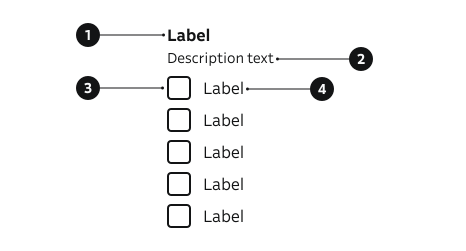
- Group label – Describes the set of related options.
- Description – Optional helper text below the label.
- Checkbox control – Square selector; multiple can be checked.
- Option label – Text linked to each checkbox option.
Key Checkbox Props
Use the following props to customize the Checkbox component to fit your needs.
variant
| Value | Example | Description |
|---|---|---|
primary | Default style for most use cases. | |
secondary | Uses highlight color for the control. |
Code example
<Checkbox name="demo" value="primary" label="Primary" variant="primary" defaultChecked />
<Checkbox name="demo" value="secondary" label="Secondary" variant="secondary" defaultChecked />
isDisabled
Non-interactive, dimmed styling.
| Type | Example | Description |
|---|---|---|
boolean | Temporarily prevents user interaction. |
Code example
<Checkbox name="demo" value="x" label="Disabled" isDisabled />
hideLabel
| Type | Example | Description |
|---|---|---|
boolean | Visually hides label but keeps it accessible. |
Code example
<Checkbox name="demo" value="hidden" label="Hidden label" hideLabel />
controlAlign
| Value | Example | Description |
|---|---|---|
start | Positions the control before the label text. | |
end | Positions the control after the label text. |
Code example
<Checkbox name="align" value="start" label="Start aligned" controlAlign="start" />
<Checkbox name="align" value="end" label="End aligned" controlAlign="end" />
error
Applies error styling to the individual checkbox.
| Type | Example | Description |
|---|---|---|
boolean | Marks checkbox with error styling. |
Code example
<Checkbox name="demo" value="err" label="Error" error />
checked / defaultChecked
Standard HTML checked control for controlled or uncontrolled usage.
| Prop | Example | Description |
|---|---|---|
defaultChecked | Sets initial checked state. | |
checked | Controlled state—must provide onChange handler. |
Code example
// Uncontrolled
<Checkbox name="demo" value="one" label="Uncontrolled default" defaultChecked />

// Controlled
const [isChecked, setChecked] = useState(true);
<Checkbox
  name="demo"
  value="two"
  label="Controlled"
  checked={isChecked}
  onChange={(e) => setChecked(e.currentTarget.checked)}
/>
Key CheckboxGroup Props
Use the following props to customize the CheckboxGroup component to fit your needs.
label
| Type | Example | Description |
|---|---|---|
string | Text label describing the purpose of the group. |
Code example
<CheckboxGroup id="fruits" name="fruits" label="Fruits" selectedValue={[]} onValueChange={() => {}}>
  <Checkbox value="apple" label="Apple" name="fruits" />
  <Checkbox value="pear" label="Pear" name="fruits" />
</CheckboxGroup>
description
Helper guidance placed below group label.
| Type | Example | Description |
|---|---|---|
string | Provides additional context or instructions for the group. |
Code example
<CheckboxGroup
  id="fruits"
  name="fruits"
  label="Fruits"
  description="Select any that apply"
  selectedValue={[]}
  onValueChange={() => {}}
>
  <Checkbox value="apple" label="Apple" name="fruits" />
  <Checkbox value="pear" label="Pear" name="fruits" />
</CheckboxGroup>
selectedValue
Array of currently selected checkbox values (controlled state).
| Type | Example | Description |
|---|---|---|
string[] | Controlled selection values. |
Code example
<CheckboxGroup
  id="colors2"
  name="colors2"
  label="Colours"
  selectedValue={['green']}
  onValueChange={(next) => {}}
>
  <Checkbox value="red" label="Red" name="colors2" />
  <Checkbox value="green" label="Green" name="colors2" />
  <Checkbox value="blue" label="Blue" name="colors2" />
</CheckboxGroup>
errorMessage
| Type | Example | Description |
|---|---|---|
string | Shows an error message and applies error styles to the group. |
Code example
<CheckboxGroup
  id="fruits"
  name="fruits"
  label="Fruits"
  errorMessage="Select at least one"
  selectedValue={[]}
  onValueChange={() => {}}
>
  <Checkbox value="apple" label="Apple" name="fruits" />
  <Checkbox value="pear" label="Pear" name="fruits" />
</CheckboxGroup>
labelOptions
Pass-through props to underlying FormGroupLabel (e.g., optionalLabel, isHidden).
| Type | Example | Description |
|---|---|---|
FormGroupLabelProps | Customizes group label display. |
Code example
<CheckboxGroup
  id="fruits"
  name="fruits"
  label="Fruits"
  labelOptions={{ optionalLabel: '(Optional)' }}
  selectedValue={[]}
  onValueChange={() => {}}
>
  <Checkbox value="apple" label="Apple" name="fruits" />
  <Checkbox value="pear" label="Pear" name="fruits" />
</CheckboxGroup>
Behavior
- Each checkbox is independent; multiple can be selected or none.
- Use a Checkbox Group to bind related options under one label/description and to show a single error message.
- Indeterminate visually represents a partial/unknown selection for parent items (not submitted as a value).
- Avoid immediate side effects on check/uncheck; apply changes on submit (use Switch for instant toggles).
- Disabled items remain visible but non-interactive.
Accessibility
- Every Checkbox needs a visible label or accessible name.
(WCAG 3.3.2 — Labels or Instructions) - Group related checkboxes under a group label that describes the overall purpose.
(WCAG 1.3.1 — Info and Relationships) - Keyboard: Tab/Shift+Tab move focus; Space toggles the focused checkbox.
(WCAG 2.1.1 — Keyboard) - Link helper or error text with aria-describedby; announce errors programmatically.
(WCAG 4.1.3 — Status Messages).
Implementation examples
With description
Code example
<CheckboxGroup
  id="learning"
  name="learning"
  label="Preferred learning methods"
  description="Select any methods that help you study effectively"
  selectedValue={["online", "group"]}
  onValueChange={() => {}}
>
  <Checkbox value="online" label="Online self-paced" name="learning" />
  <Checkbox value="classroom" label="Classroom" name="learning" />
  <Checkbox value="hybrid" label="Hybrid" name="learning" />
  <Checkbox value="group" label="Group discussions" name="learning" />
  <Checkbox value="independent" label="Independent study" name="learning" />
</CheckboxGroup>
With error message
Code example
<CheckboxGroup
  id="learning-error"
  name="learning-error"
  label="Preferred learning methods"
  description="Select any methods that help you study effectively"
  errorMessage="Please select at least one method"
  selectedValue={[]}
  onValueChange={() => {}}
>
  <Checkbox value="online" label="Online self-paced" name="learning-error" />
  <Checkbox value="classroom" label="Classroom" name="learning-error" />
  <Checkbox value="hybrid" label="Hybrid" name="learning-error" />
  <Checkbox value="group" label="Group discussions" name="learning-error" />
  <Checkbox value="independent" label="Independent study" name="learning-error" />
</CheckboxGroup>
Indeterminate state
Indeterminate state indicates a partial selection (e.g., parent with some children selected). It does not submit a value—purely visual and must be set via ref. Rarely used.
Code example
import { useEffect, useRef, useState } from 'react';
import { Checkbox, CheckboxGroup } from '@yleisradio/yds-components-react';

export const IndeterminateCheckbox = () => {
  const ref = useRef<HTMLInputElement | null>(null);
  const [childValues, setChildValues] = useState<string[]>(['a']);

  const allValues = ['a', 'b', 'c'];
  const isAll = childValues.length === allValues.length;
  const isNone = childValues.length === 0;

  useEffect(() => {
    if (ref.current) {
      ref.current.indeterminate = !isAll && !isNone;
    }
  }, [isAll, isNone]);

  return (
    <CheckboxGroup
      id="indeterminate-state"
      name="indeterminate-state"
      label="Intedeterminate state"
      selectedValue={[]}
      onValueChange={() => {}}
    >
      <Checkbox
        name="parent"
        value="parent"
        label="Select all"
        ref={ref}
        checked={isAll}
        onChange={() => {
          setChildValues(isAll ? [] : allValues);
        }}
      />
      {allValues.map((v) => (
        <Checkbox
          key={v}
          name="children"
          value={v}
          label={`Child ${v.toUpperCase()}`}
          checked={childValues.includes(v)}
          onChange={(e) => {
            setChildValues((prev) =>
              e.target?.checked ? prev.concat([v]) : prev.filter((x) => x !== v)
            );
          }}
        />
      ))}
    </CheckboxGroup>
  );
};
API Reference
Props
Checkbox
The Checkbox component accepts all standard HTML <input> attributes in addition to the following props:
| Prop | Type | Required | Default | Description |
|---|---|---|---|---|
isDisabled | boolean | No | false | |
variant | 'primary' | 'secondary' | No | 'primary' | |
value | string | No | — | |
name | string | Yes | — | |
label | ReactNode | Yes | — | |
error | boolean | No | false | |
hideLabel | boolean | No | false | |
useUnderlay | boolean | No | false | |
controlAlign | InputControlAlign | No | 'start' |
CheckboxGroup
The CheckboxGroup component accepts the following props:
| Prop | Type | Required | Default | Description |
|---|---|---|---|---|
id | string | Yes | — | |
name | string | Yes | — | |
selectedValue | string[] | Yes | — | |
errorMessage | string | No | — | |
label | string | No | — | |
labelOptions | FormGroupLabelProps | No | — | |
description | string | No | — | |
children | ReactNode | Yes | — | |
onValueChange | (value: string[]) => void | Yes | — |
Type Definitions
Checkbox
export type InputControlAlign = 'start' | 'end';

export interface CheckboxDSProps {
  isDisabled?: boolean;
  variant?: 'primary' | 'secondary';
  value?: string;
  name: string;
  label: ReactNode;
  error?: boolean;
  hideLabel?: boolean;
  useUnderlay?: boolean;
  controlAlign?: InputControlAlign;
}

export type CheckboxProps = InputHTMLAttributes<HTMLInputElement> & CheckboxDSProps;
CheckboxGroup
export interface CheckboxGroupDSProps {
  id: string;
  name: string;
  selectedValue: string[];
  errorMessage?: string;
  label?: string;
  labelOptions?: FormGroupLabelProps;
  description?: string;
  children: ReactNode;
  onValueChange: (value: string[]) => void;
}

export type CheckboxGroupProps = CheckboxGroupDSProps;