TextArea
A TextArea is a multi-line input field used for longer, free‑form responses that span multiple lines, such as descriptions, messages or feedback.
Code example
import { Textarea } from '@yleisradio/yds-components-react';

<Textarea
  id="basic"
  label="Message"
  placeholder="Type here..."
  rows={4}
/>
Why to use
TextArea enables users to write longer, open-ended content that does not fit into a single line. It supports helper text, character limits, and validation feedback, helping users understand expectations and compose content confidently within given constraints. Use TextArea whenever users need space to explain, describe, or elaborate.
When to use
Use TextArea when users need to provide multi-line or open-ended text that may span several sentences or paragraphs.
- Use TextArea for long-form or expressive input (e.g., descriptions, feedback, messages).
- Use it when users need space to explain or elaborate.
- Use it in forms, support flows, reporting tools, and writing tasks.
- Use it when input length varies or is hard to predict..
- Don’t use TextArea for short, single-line input — use TextInput.
- Don’t use it for selecting predefined options — use Select, Radio, or Checkbox.
- Don’t use it when rich text formatting is required — use a rich text editor.
- Don’t use it when only a short identifier or value is needed.
Content Guidelines
TextArea content should guide users without overwhelming them. Labels, descriptions, and error messages must support open-ended writing while staying concise and scannable.
- Use short, clear labels (e.g., “Kuvaus”, “Viesti”, “Palaute”).
- Provide helpful descriptions to set expectations (esim. “Kuvaile ongelmaa mahdollisimman tarkasti”).
- Use placeholder text for examples, not instructions (e.g., “Kaikki alkoi siitä…”)
- Explain character limits and show a counter when used.
- Write actionable error messages (e.g., “Kirjoita vähintään 50 merkkiä”).
- Keep guidance brief and scannable.
- Don’t duplicate the label in the description.
- Don’t use vague wording like “Kirjoita jotain”.
- Don’t rely on placeholder text as the only guidance.
- Don’t use generic errors like “Virheellinen syöte”. -Don’t include filler like “Huomioithan että…”.
- Don’t include long, dense instructional paragraphs.
Anatomy
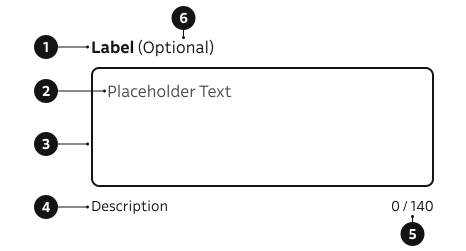
- Label – Describes the purpose of the field.
- Placeholder – Example or hint text inside the area.
- Input field – Multi-line area where users enter text.
- Description – Additional guidance or context below the field.
- Character counter – Displays the number of typed and remaining characters.
- Optional field indicator – Shows that the field is not required to fill.
Key Props
Use the following props to configure the Textarea component.
rows
Sets the initial visible height (in text rows). Content beyond this height becomes scrollable.
| Type | Example | Description |
|---|---|---|
number | Controls initial vertical size of the field. |
Code example
<Textarea
  id="rows-demo"
  label="Comments"
  rows={3}
  placeholder="Type your message..."
/>
label
Label can be visually hidden but must remain readable for screen readers.
| Type | Example | Description |
|---|---|---|
string | Provides a clear purpose for the field. |
Code example
<Textarea
  id="bio"
  label="Bio"
/>
description
Helper guidance placed below the field.
| Type | Example | Description |
|---|---|---|
string | Clarifies purpose, format, or constraints. |
Code example
<Textarea
  id="bio"
  label="Bio"
  description="Tell us about yourself"
  placeholder="I like carrots..."
/>
success
Provide feedback after user action or async validation.
| Type | Example | Description |
|---|---|---|
boolean | Indicates successful validation. |
Code example
  <Textarea
    id="s1"
    label="Feedback"
    defaultValue="All set"
    success
  />
errorMessage
Provide feedback after user action or async validation.
| Type | Example | Description |
|---|---|---|
string | Displays a validation error below the field. Sets aria-invalid. |
Code example
  <Textarea
    id="e1"
    label="Feedback"
    defaultValue="Too short"
    errorMessage="Text should be at least 50 characters"
  />
isDisabled
Makes the field non‑interactive and visually dimmed.
| Type | Example | Description |
|---|---|---|
boolean | Temporarily prevents user interaction. |
Code example
<Textarea id="dis" label="Summary" value="Confirmed text" isDisabled description="Confirmed value cannot be edited" />
characterLimit
Restricts input length and shows a live character counter (current / limit). Prevents exceeding the limit via maxLength.
| Type | Example | Description |
|---|---|---|
number | Enforces and displays remaining capacity. |
Code example
<Textarea id="limit" label="Bio" characterLimit={140} description="Max 140 characters." />
Behavior
- Default height is controlled via rows; the area becomes scrollable when content exceeds the visible space.
- The label appears above the field; helper text is read immediately after the label.
- Error messages explain how to fix the issue.
- Validation feedback appears as error or success states with color and text.
- Disabled state blocks input and dims visuals.
- On mobile, the component should be full-width.
- Match the default height and width to the expected content length (do not oversize).
Accessibility
- Every TextArea must have a visible or programmatically associated label.
- Provide meaningful helper text for constraints (WCAG 3.3.2 — Labels or Instructions).
- Ensure full keyboard accessibility — users should be able to navigate using
Tab,Shift+Tab, and activate controls withEnter.
(WCAG 2.1.1 — Keyboard).
Implementation examples
Describe your problem
How to use placeholder, description and optional label in TextArea.
Code example
<Textarea
  id="opt-ex"
  label="Describe your problem"
  description="Provide as much detail as possible."
  labelOptions={{ optionalLabel: '(Optional)' }}
  rows={3}
  placeholder="It all started, when..."
/>
With error
Error state provides a clear indication that went wrong and error message tells how to fix it.
Code example
<Textarea
  id="err-ex"
  label="Describe your problem"
  labelOptions={{ optionalLabel: '(Optional)' }}
  defaultValue="It all started, when..."
  errorMessage="Please provide more detail"
  rows={3}
/>
Character limit
API Reference
Props
The Textarea component accepts all standard HTML <textarea> attributes in addition to the following props:
| Prop | Type | Required | Default | Description |
|---|---|---|---|---|
label | string | Yes | — | |
labelOptions | FormElementLabelDSProps | No | {} | |
id | string | Yes | — | |
value | string | Yes | — | |
onChange | (e: React.ChangeEvent<HTMLTextAreaElement>) => void | Yes | — | |
placeholder | string | No | — | |
rows | number | No | — | |
description | string | No | — | |
errorMessage | string | No | — | |
success | boolean | No | false | |
isDisabled | boolean | No | false | |
characterLimit | number | No | — |
Type Definitions
export interface TextareaDSProps {
  label: string;
  labelOptions?: FormElementLabelDSProps;
  id: string;
  value: string;
  onChange: (e: React.ChangeEvent<HTMLTextAreaElement>) => void;
  placeholder?: string;
  rows?: number;
  description?: string;
  errorMessage?: string;
  success?: boolean;
  isDisabled?: boolean;
  characterLimit?: number;
}

export type TextareaProps = React.TextareaHTMLAttributes<HTMLTextAreaElement> & TextareaDSProps;
Related Components
- TextInput: For single-line responses.
- SearchInput: For search functionality.
- Select: For single-select dropdowns.
- ComboboxSingleSelect: For searchable single-select dropdowns.