BannerNotification
A BannerNotification displays important temporary messages that affect the entire view or service, appearing below the header and remaining visible until dismissed.
Code example
import { BannerNotification } from '@yleisradio/yds-components-react';

<BannerNotification level="warning" title="Scheduled maintenance">
  The service will be unavailable on Sunday from 02:00 to 04:00.
</BannerNotification>
Why to use
BannerNotifications communicate important service- or view-wide information that users must notice. They are designed for messages that affect the entire experience, such as maintenance, outages, or access limitations, and therefore require high visibility and persistence.
Unlike Inline Notifications, which relate to specific content, or Toasts, which are brief and transient, BannerNotifications provide sustained awareness across the whole view.
When to use
BannerNotifications are used to communicate important information that affects the entire page or service and must be noticed by all users.
- se a BannerNotification for service-wide or view-wide messages.
- Use it for system states such as maintenance, outages, access restrictions, or critical warnings.
- Use it when the message must remain visible until acknowledged or resolved.
- Use it when users may need to take action outside the current context.
- Don’t use BannerNotifications for local or field-level issues — use Inline Notification.
- Don’t use them for short-lived confirmations or feedback — use a Toast.
- Don’t show multiple banners at the same time.
- Don’t make critical system messages dismissible without another way to access the information.
Differences between Notification Types
| Type | Purpose | Placement | Use case |
|---|---|---|---|
| Banner Notification | A notification covering the entire view or service (e.g., maintenance, error state). | Fixed, below the header. | “Maintenance in progress” |
| Inline Notification | A local notification within content or a form (e.g., field error). | Embedded in content. | “This field is required” |
| Toast Notification | A short-lived, automatically disappearing feedback message (e.g., save confirmation). | Floating near the bottom of the screen, sliding in and out smoothly. | “Saved successfully” |
Content Guidelines
BannerNotification content should be clear, scannable, and focused on impact. Users should immediately understand what is happening and why it matters.
- Use a clear, descriptive title (e.g., “Huoltokatko”).
- Start with what is happening and why it matters (e.g., “Palvelu ei ole käytettävissä sunnuntaina 02.00–04.00”).
- Keep body copy short (one–two sentences).
- Add next steps when relevant (e.g., “Yritä uudelleen”, “Näytä lisätiedot”).
- Use actions only when the user can meaningfully act.
- Don’t write long or dense text.
- Don’t repeat title text in the body.
- Don’t use vague phrasing (e.g., “Tapahtui virhe”).
- Don’t use jargon or filler.
Anatomy
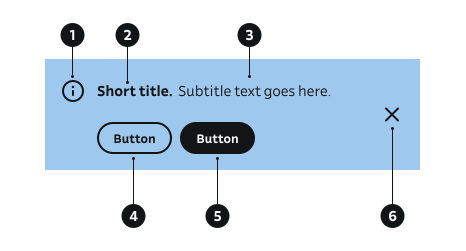
- Icon – Icon indicating the message level (info, success, warning, error).
- Title – Short heading.
- Body – Main message content.
- Secondary Button (Actions) – Optional supporting or alternative action.
- Primary Button (Actions) – Main action guiding the user’s next step.
- Close Button – Optional dismiss control that allows the user to close non-critical or informational notifications.
Key BannerNotification Props
Use these props to configure the BannerNotification component.
level
Sets semantic and visual level (icon + colors).
| Value | Example | Description |
|---|---|---|
info | General information. | Neutral informational context. |
success | Task completed. | Positive confirmation. |
warning | Check details. | Caution, requires attention soon. |
error | Action failed. | Critical or blocking issue. |
Code example
<BannerNotification level="info">General information.</BannerNotification>
<BannerNotification level="success">Task completed.</BannerNotification>
<BannerNotification level="warning">Check details.</BannerNotification>
<BannerNotification level="error">Action failed.</BannerNotification>
title
Optional short heading preceding body.
| Type | Example | Description |
|---|---|---|
ReactNode | Update Service updated. | Concise summary of message. |
Code example
<BannerNotification title="Update">Service updated.</BannerNotification>
children (body)
Main descriptive text.
| Type | Example | Description |
|---|---|---|
ReactNode | Maintenance Will occur Sunday. | Explains status or guidance. |
Code example
<BannerNotification title="Maintenance">Will occur Sunday.</BannerNotification>
<BannerNotification>Standalone message without title.</BannerNotification>
hideIcon
Suppresses level icon (text/color still convey status).
| Type | Example | Description |
|---|---|---|
boolean | Plain text only. | Removes icon for minimal layout. |
Code example
<BannerNotification hideIcon>Plain text only.</BannerNotification>
onClose (close button)
| Type | Example | Description |
|---|---|---|
() => void | Dismissable Close me. | If provided, displays close button at the right side. Closing the notification needs to be handled in the callback. |
Code example
const [show, setShow] = useState(true);
{show && (
  <BannerNotification onClose={() => setShow(false)} title="Dismissable">
    Close me.
  </BannerNotification>
)}
actions
Inline actionable elements (e.g., Retry, View details).
| Type | Example | Description |
|---|---|---|
ReactNode | Beta test We are looking for user to participate in our beta test. | Buttons aligned within banner. |
Code example
  <BannerNotification
    actions={
      <div style={{ display: 'flex', gap: 8}}>
        <Button size="xs" text="Participate" />
        <Button variant="secondary" size="xs" text="Dismiss" />
      </div>
    }
    title="Beta test"
  >
    We are looking for users to participate in our beta test.
  </BannerNotification>
contentContainer
Custom wrapper component to constrain or style inner content.
| Type | Example | Description |
|---|---|---|
ComponentType<PropsWithChildren> | See implementation examples | Limits width / adds layout styling. |
Behavior
- BannerNotifications appear directly below the global header and span the full width of the viewport.
- They remain visible until dismissed by the user or until the underlying condition is resolved.
- Only one BannerNotification should be shown per view at a time.
- BannerNotifications should not overlap or obscure primary page content.
- When actions are present, they are clearly labeled and consistently aligned.
- Dismissal is optional and should be avoided for critical system messages.
Accessibility
- Place logically after the header in DOM order for easy navigation.
- Ensure close button includes a descriptive aria-label (e.g., “Close notification”).
- Ensure full keyboard accessibility and visible focus states for actions and controls.
- Critical information should remain available until resolved or acknowledged.
Implementation examples
With actions
Code example
<BannerNotification
  level="info"
  title="Vahvista, että kotikuntasi on Suomessa"
  actions={<Button size="xs" text="Vahvista kotikuntasi" />}
>
  <span>Ohjelma katsottavissa EU:n alueella.</span>
</BannerNotification>
Constrained content width
Code example
import { BannerNotification } from '@yleisradio/yds-components-react';

const Container = ({ children }: { children: React.ReactNode }) => (
  <div style={{ maxWidth: 640, margin: '0 auto', width: '100%' }}>{children}</div>
);

export const BannerNotificationContentContainer = () => {
  return (
    <BannerNotification level="info" title="Feature rollout" contentContainer={Container}>
      We are gradually rolling out a new navigation experience. Some users may see the update
      earlier than others.
    </BannerNotification>
  );
};
API Reference
Props
The BannerNotification component accepts all standard HTML <div> attributes in addition to the following props:
| Prop | Type | Required | Default | Description |
|---|---|---|---|---|
children | React.ReactNode | No | — | |
title | React.ReactNode | No | — | |
level | NotificationLevel | No | 'info' | |
hideIcon | boolean | No | — | |
onClose | () => void | No | — | |
actions | React.ReactNode | No | — | |
contentContainer | ComponentType<PropsWithChildren> | No | — |
Type Definitions
export type NotificationLevel = 'info' | 'success' | 'warning' | 'error';

export interface BannerNotificationDSProps {
  children?: React.ReactNode;
  title?: React.ReactNode;
  level?: NotificationLevel;
  hideIcon?: boolean;
  onClose?: () => void;
  actions?: React.ReactNode;
  contentContainer?: ComponentType<PropsWithChildren>;
}

export type BannerNotificationProps = Omit<
  HTMLAttributes<HTMLDivElement>,
  keyof BannerNotificationDSProps
> &
  BannerNotificationDSProps;
Related Components
- Notification – Inline contextual messages.
- Toast Notification – Short-lived floating feedback.