DropdownMenu
DropdownMenu is a button-based control that lets users select a value from a list of options and applies the change immediately. It is used for lightweight state changes such as language selection or sorting.
Code example
import { DropdownMenu } from '@yleisradio/yds-components-react';

const [value, setValue] = useState<string>();

<DropdownMenu
  placeholder="Select option"
  value={value}
  onChange={setValue}
  options={[
    { text: 'Option 1', value: 'opt1' },
    { text: 'Option 2', value: 'opt2' },
    { type: 'separator' },
    { text: 'Option 3', value: 'opt3' },
  ]}
  id="dropdown-1"
  menuId="menu-1"
  value={value}
  onChange={setValue}
/>
Why to use
DropdownMenu provides a compact and accessible way to change the UI state by selecting one option from a predefined list. It enables users to make immediate choices without additional confirmation, while keeping the interface clean and uncluttered. By building on the Menu component, DropdownMenu ensures consistent positioning, keyboard interaction, and visual behavior across products.
It is especially suitable for cases where options are few, clearly comparable, and the selection directly affects what the user sees or how the interface behaves.
When to use
Use DropdownMenu when users need to select a single value that changes the UI state immediately, such as language, sorting order, or filtering mode.
- Use when the selection updates the interface immediately without requiring a separate save action.
- Use when options are easily comparable at a glance.
- Use for lightweight UI state changes such as language, sorting, or view mode.
- Don’t use when users need to select multiple values – use multi-select patterns instead.
- Don’t use when options should remain visible and directly comparable – use ButtonGroup instead.
- Don’t use for triggering actions that do not change component state – use ActionMenu instead.
Content Guidelines
DropdownMenu labels and options should support quick scanning and easy comparison.
- Keep option labels short and parallel in structure.
- Use nouns or adjectives for option labels (e.g. “Suomi”, “English”, “Uusin”).
- Ensure options are easily comparable at a glance.
- Prefer fewer than eight options to maintain clarity.
- Don’t use long or descriptive sentences as options.
- Don’t use abbreviations like “FI”, “EN” for language choices.
- Don’t mix different grammatical styles in the same list.
- Don’t include options that are not logically comparable.
Anatomy
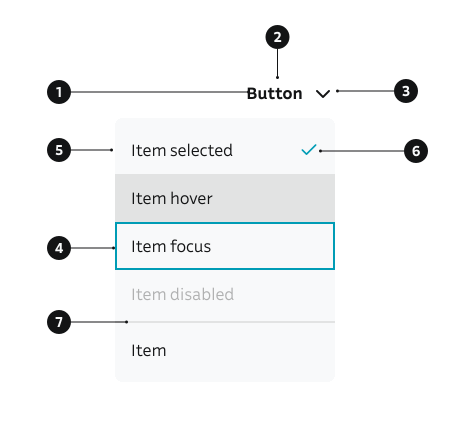
- DropdownMenu button – The trigger button that opens the dropdown menu.
- Label / selected value – Text inside the button showing the placeholder or the currently selected value.
- Chevron icon – Indicates that the button opens a dropdown menu.
- Menu surface – The floating container holding the selectable options.
- MenuItem (option) – A single selectable option inside the menu.
- Selected state – Visual indicator showing the currently selected option.
- MenuSeparator (optional) – Groups related actions.
Key DropdownMenu Props
Use these props to configure the DropdownMenu component.
placeholder
Placeholder text displayed when no option is selected.
| Type | Example | Description |
|---|---|---|
string | Placeholder text |
Code example
<DropdownMenu
  placeholder="Select an option"
  options={options}
  value={value}
  onChange={onChange}
  id="menu-1"
  menuId="menu-1"
/>
options
Array of menu options and separators.
| Type | Example | Description |
|---|---|---|
(DropdownMenuOption<T> | DropdownMenuSeparator)[] | Array of options and separators |
Code example
<DropdownMenu
  options={[
    { text: 'Option 1', value: 'opt1' },
    { text: 'Option 2', value: 'opt2' },
    { type: 'separator' },
    { text: 'Option 3', value: 'opt3' },
  ]}
  value={value}
  onChange={onChange}
  placeholder="Select"
  id="menu-1"
  menuId="menu-1"
/>
dropdown
Whether to show a dropdown chevron icon.
| Value | Example | Description |
|---|---|---|
true | Shows chevron icon | |
false | Hides chevron icon |
Code example
<DropdownMenu
  dropdown={true}
  id="menu-1"
  menuId="menu-1"
  options={options}
  value={value}
  onChange={onChange}
  placeholder="Select"
/>
openMenuOnClick
Whether clicking the button opens the menu.
| Type | Example | Description |
|---|---|---|
boolean | Controls if click opens menu |
Code example
<DropdownMenu
  openMenuOnClick={true}
  id="menu-1"
  menuId="menu-1"
  options={options}
  value={value}
  onChange={onChange}
  placeholder="Select"
/>
menuSize
Size of the menu items.
| Value | Example | Description |
|---|---|---|
sm | Small menu items | |
md | Medium menu items (default) |
Code example
<DropdownMenu
  menuSize="sm"
  id="menu-1"
  menuId="menu-1"
  options={options}
  value={value}
  onChange={onChange}
  placeholder="Select"
/>
alignMenu
Horizontal alignment of the menu relative to the button.
| Value | Example | Description |
|---|---|---|
left | Aligns menu to the left | |
right | Aligns menu to the right (default) |
Code example
<DropdownMenu
  alignMenu="left"
  id="menu-1"
  menuId="menu-1"
  options={options}
  value={value}
  onChange={onChange}
  placeholder="Select"
/>
Behavior
- Selecting an option updates the component state immediately.
- The selected value is reflected in the trigger button label.
- The menu opens from the trigger and closes after selection, outside click, or cancellation.
- The menu is positioned relative to the trigger and adjusts to the viewport when needed.
- Keyboard interaction:
- Arrow keys navigate between options.
- Enter selects an option.
- Escape closes the menu.
Accessibility
- Ensure full keyboard support for all interactions (Tab, Arrow keys, Enter, Space).
(WCAG 2.1.1 — Keyboard) - Interactive elements have visible focus indicators.
(WCAG 2.4.7 — Focus Visible) - Options are easily comparable and perceivable at a glance.
- The selected option is communicated both visually and programmatically.
- Screen readers announce the current value and the open/closed state of the menu.
Implementation Examples
Language Selector
Code example
import { DropdownMenu } from '@yleisradio/yds-components-react';

const [value, setValue] = useState<string>();

<DropdownMenu
  placeholder="Select Language"
  options={[
    { text: 'Suomi', value: 'fi' },
    { text: 'Svenska', value: 'sv' },
    { text: 'English', value: 'en' },
  ]}
  id="languare-selector"
  menuId="language-menu"
  value={value}
  onChange={setValue}
/>
API Reference
Props
The DropdownMenu component accepts all standard ActionMenu props (except children and text) in addition to the following props:
| Prop | Type | Required | Default | Description |
|---|---|---|---|---|
placeholder | string | Yes | — | Placeholder text when no option selected |
value | T | undefined | Yes | — | Currently selected value |
onChange | (value: T) => void | Yes | — | Callback fired when selection changes |
options | (DropdownMenuOption<T> | DropdownMenuSeparator)[] | Yes | — | Array of menu options and separators |
id | string | Yes | — | Unique identifier for the button |
menuId | string | Yes | — | Unique identifier for the menu |
Type Definitions
export interface DropdownMenuOption<T> {
  text: string;
  value: T;
  type?: 'item';
}

export interface DropdownMenuSeparator {
  type: 'separator';
}

export type DropdownMenuDSProps<T> = Omit<ActionMenuDSProps, 'children' | 'text'> & {
  placeholder: string;
  value: T | undefined;
  onChange: (value: T) => void;
  options: (DropdownMenuOption<T> | DropdownMenuSeparator)[];
};

export type DropdownMenuProps<T> = DropdownMenuDSProps<T> &
  Omit<ActionMenuProps, 'children' | 'onClick' | 'onChange' | 'text'>;
Related Components
- Menu - Base component for all menu components
- ActionMenu – Base component that DropdownMenu extends
- DropdownMenuGroup – Component for grouping multiple DropdownMenus
- Select – Alternative component for form selects
- ButtonGroup – Alternative component for button-based menus