DropdownMenuGroup
DropdownMenuGroup groups multiple dropdown menus into a single, cohesive control area, allowing users to make one or more selections in a compact way without overloading the interface.
Code example
import { DropdownMenuGroup } from '@yleisradio/yds-components-react';

<DropdownMenuGroup>
  <DropdownMenuGroup.DropdownMenu
    id="menu-1"
    options={[
      { text: 'Option 1', value: 'opt1' },
      { text: 'Option 2', value: 'opt2' },
    ]}
    value={selectedValue}
    onChange={(value) => setSelectedValue(value)}
  />
  <DropdownMenuGroup.DropdownMenuMultiSelect
    id="menu-2"
    options={[
      { text: 'Option A', value: 'optA' },
      { text: 'Option B', value: 'optB' },
    ]}
    value={selectedValues}
    onChange={(values) => setSelectedValues(values)}
  />
</DropdownMenuGroup>
Why to use
DropdownMenuGroup brings related selections together into a clear and consistent whole. It reduces visual clutter compared to always-visible button groups while still supporting both single- and multi-select patterns with unified behavior, alignment, and visual styling across the product.
When to use
Use DropdownMenuGroup when users need to make one or more related selections but the options don’t need to be visible all the time.
| Pattern | What it does | Typical use cases |
|---|---|---|
| Single Select | Allows selecting one option from a dropdown menu. | Selecting a single election-related view or setting, such as election type or region. |
| Multi Select | Allows selecting zero or more options from a dropdown menu. | Filtering content by election-related criteria, such as parties, candidate types, or themes. |
- Use when option lists are long, labels are wide, or the UI would become cluttered if everything was always visible.
- Use it for supportive settings and filters (not the primary state of the view).
- Use single-select dropdowns for one choice and multi-select dropdowns for filters.
- Use multiple menus together when selections belong to the same task (e.g., “Category” + “Sort” + “Time range”).
- Don’t hide primary view state changes inside menus — use ButtonGroup or tabs instead.
- Don’t use DropdownMenuGroup for page-level navigation — use NavigationTabs instead.
- Don’t use it for switching content within a section — use SectionTabs instead.
- Don’t combine unrelated selections within the same group.
- Don’t use menus when options should remain visible and directly comparable — use ButtonGroup instead..
Content Guidelines
Menu labels and options must be short, scannable, and comparable. Users should understand what each menu controls and what each option changes without extra explanation.
- Use clear menu labels that describe the selection category (e.g., “Alue”, “Aikaväli”, “Järjestys”).
- Keep option labels short and parallel (e.g., “Uusin”, “Suosituin”, “A–Ö”).
- Use nouns for filters and categories; use verbs only when an item triggers an immediate action.
- Use separators to group options when the list includes multiple logical sections.
- Keep terminology and capitalization consistent within the same menu and across menus in the group
- Don’t use long sentences or instructions as menu options.
- Don’t use vague labels like “Oletus” or “Valitse” without context.
- Don’t mix verbs and nouns in the same option list without a clear reason.
- Don’t rely on placeholder text alone to explain scope or rules — use surrounding UI text or helper text.
- Don’t create deep or overly complex menu structures — split into multiple menus or rethink the model.
Anatomy
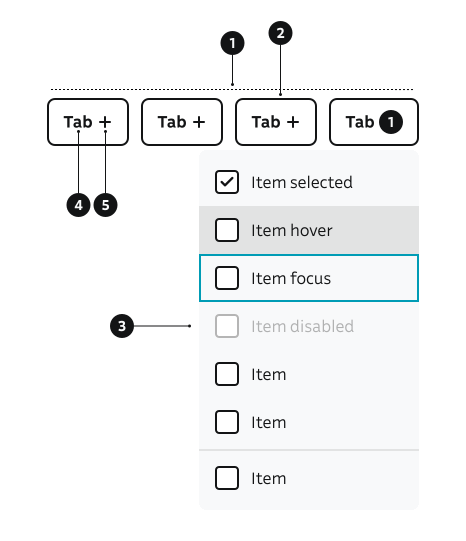
- Group Container – Wraps multiple menus into a single unit and manages spacing, alignment, and wrapping.
- Menu Button – The control users interact with to open and close a menu.
- Menu (Panel & Items) – The dropdown (list, radio or checkbox) surface containing selectable options, optional separators, and selection styles.
- Label – Text inside each menu button describing the menu.
- Selection Indicator – Visual indication of selection
Key DropdownMenuGroup Props
Use these props to configure the DropdownMenuGroup component.
children
DropdownMenu components to display in the group.
| Type | Example | Description |
|---|---|---|
React.ReactNode | DropdownMenu sub-components |
Code example
<DropdownMenuGroup>
  <DropdownMenuGroup.DropdownMenu id="menu-1" options={[{ text: 'Option 1', value: 'opt1' }, { text: 'Option 2', value: 'opt2' }]} value={undefined} onChange={() => {}}>Menu 1</DropdownMenuGroup.DropdownMenu>
  <DropdownMenuGroup.DropdownMenu id="menu-2" options={[{ text: 'Option 1', value: 'opt1' }, { text: 'Option 2', value: 'opt2' }]} value={undefined} onChange={() => {}}>Menu 2</DropdownMenuGroup.DropdownMenu>
</DropdownMenuGroup>
variant
Visual style variant of the buttons.
| Value | Example | Description |
|---|---|---|
primary | Primary button style (default) | |
text | Low-emphasis text style for lighter controls |
Code example
<DropdownMenuGroup variant="primary">
  <DropdownMenuGroup.DropdownMenu id="menu-1" options={[]} value={undefined} onChange={() => {}}>Menu 1</DropdownMenuGroup.DropdownMenu>
</DropdownMenuGroup>
size
Size of the buttons.
| Value | Example | Description |
|---|---|---|
xs | Extra small size | |
sm | Small size | |
md | Medium size (default) | |
lg | Large size |
Code example
<DropdownMenuGroup size="sm">
  <DropdownMenuGroup.DropdownMenu id="menu-1" options={[]} value={undefined} onChange={() => {}}>Menu 1</DropdownMenuGroup.DropdownMenu>
</DropdownMenuGroup>
menuSize
Size of the menu items.
| Value | Example | Description |
|---|---|---|
sm | Small menu items | |
md | Medium menu items (default) |
Code example
<DropdownMenuGroup menuSize="sm">
  <DropdownMenuGroup.DropdownMenu id="menu-1" options={[]} value={undefined} onChange={() => {}}>Menu 1</DropdownMenuGroup.DropdownMenu>
</DropdownMenuGroup>
Key DropdownMenuGroup.DropdownMenu Props
Use these props to configure the single-select dropdown menu.
options
Array of menu options and separators.
| Type | Example | Description |
|---|---|---|
(DropdownMenuOption<T> | DropdownMenuSeparator)[] | Array of options and separators |
Code example
<DropdownMenuGroup.DropdownMenu
  id="menu-1"
  options={[
    { text: 'Option 1', value: 'opt1' },
    { text: 'Option 2', value: 'opt2' },
    { type: 'separator' },
    { text: 'Option 3', value: 'opt3' },
  ]}
  value={value}
  onChange={onChange}
>
  Menu 1
</DropdownMenuGroup.DropdownMenu>
value
Currently selected value (single value).
| Type | Example | Description |
|---|---|---|
T | undefined | Selected option value |
Code example
<DropdownMenuGroup.DropdownMenu
  id="menu-1"
  value="opt1"
  options={[{ text: 'Option 1', value: 'opt1' }, { text: 'Option 2', value: 'opt2' }]}
  onChange={onChange}
>
  Menu 1
</DropdownMenuGroup.DropdownMenu>
defaultValue
Initial selected value for uncontrolled component.
| Type | Example | Description |
|---|---|---|
T | undefined | Initial selected value |
Code example
<DropdownMenuGroup.DropdownMenu
  id="menu-1"
  defaultValue="opt1"
  options={[{ text: 'Option 1', value: 'opt1' }, { text: 'Option 2', value: 'opt2' }]}
  onChange={onChange}
>
  Menu 1
</DropdownMenuGroup.DropdownMenu>
menuItemVariant
Visual variant of menu items.
| Value | Example | Description |
|---|---|---|
default | Default menu item style | |
radio | Radio button style menu items |
Code example
<DropdownMenuGroup.DropdownMenu
  id="menu-1"
  menuItemVariant="radio"
  options={options}
  value={value}
  onChange={onChange}
>
  Menu 1
</DropdownMenuGroup.DropdownMenu>
alignMenu
Horizontal alignment of the menu relative to the button.
| Value | Example | Description |
|---|---|---|
left | Aligns menu to the left | |
right | Aligns menu to the right (default) |
Code example
<DropdownMenuGroup.DropdownMenu
  id="menu-1"
  alignMenu="left"
  options={[options]}
  value={value}
  onChange={onChange}
>
  Menu 1
</DropdownMenuGroup.DropdownMenu>
Key DropdownMenuGroup.DropdownMenuMultiSelect Props
Use these props to configure the multi-select dropdown menu.
options
Array of menu options and separators.
| Type | Example | Description |
|---|---|---|
(DropdownMenuOption<T> | DropdownMenuSeparator)[] | Array of options and separators |
Code example
<DropdownMenuGroup.DropdownMenuMultiSelect
  id="menu-1"
  options={[
    { text: 'Option 1', value: 'opt1' },
    { text: 'Option 2', value: 'opt2' },
    { type: 'separator' },
    { text: 'Option 3', value: 'opt3' },
  ]}
  value={values}
  onChange={onChange}
>
  Menu 1
</DropdownMenuGroup.DropdownMenuMultiSelect>
value
Currently selected values (array).
| Type | Example | Description |
|---|---|---|
T[] | undefined | Selected option values |
Code example
<DropdownMenuGroup.DropdownMenuMultiSelect
  id="menu-1"
  value={['opt1', 'opt2']}
  options={[{ text: 'Option 1', value: 'opt1' }, { text: 'Option 2', value: 'opt2' }, { type: 'separator' }, { text: 'Option 3', value: 'opt3' }]}
  onChange={onChange}
>
  Menu 1
</DropdownMenuGroup.DropdownMenuMultiSelect>
defaultValue
Initial selected values for uncontrolled component.
| Type | Example | Description |
|---|---|---|
T[] | undefined | Initial selected values |
Code example
<DropdownMenuGroup.DropdownMenuMultiSelect
  id="menu-1"
  defaultValue={['opt1', 'opt2']}
  options={[{ text: 'Option 1', value: 'opt1' }, { text: 'Option 2', value: 'opt2' }]}
  onChange={onChange}
>
  Menu 1
</DropdownMenuGroup.DropdownMenuMultiSelect>
menuItemVariant
Visual variant of menu items.
| Value | Example | Description |
|---|---|---|
default | Default menu item style | |
checkbox | Checkbox style menu items |
Code example
<DropdownMenuGroup.DropdownMenuMultiSelect
  id="menu-1"
  menuItemVariant="checkbox"
  options={options}
  value={values}
  onChange={onChange}
>
  Menu 1
</DropdownMenuGroup.DropdownMenuMultiSelect>
alignMenu
Horizontal alignment of the menu relative to the button.
| Value | Example | Description |
|---|---|---|
left | Aligns menu to the left | |
right | Aligns menu to the right (default) |
Code example
<DropdownMenuGroup.DropdownMenuMultiSelect
  id="menu-1"
  alignMenu="left"
  options={options}
  value={values}
  onChange={onChange}
>
  Menu 1
</DropdownMenuGroup.DropdownMenuMultiSelect>
Behavior
- Menus open from their button and close on selection, outside click, or cancellation.
- Single-select updates one value; multi-select toggles options independently.
- Menus in the same group align visually and can wrap onto multiple rows when space is limited.
- Use alignMenu near edges to prevent the panel from being clipped.
- onOpen / onClose can be used for analytics and focus management.
- openMenuOnClick defines whether the menu opens on click (default: true).
Accessibility
- Ensure full keyboard support (Tab, Arrow keys, Enter, Space).
(WCAG 2.1.1 — Keyboard) - Provide clear context for each menu through visible text or an accessible programmatic name.
(WCAG 4.1.2 — Name, Role, Value) - Keep selection state perceivable (radio/checkbox variants help communicate single vs multi selection).
(WCAG 1.3.1 — Info and Relationships)
Implementation Examples
Search filters with single select menus
Code example
<div style={{ display: 'flex', gap: '8px', flexDirection: 'column' }}>
  <SearchInput
    id="search-basic"
    label="Hae"
    placeholder="Hae"
    name="q"
    submitButton={<SearchSubmitButton aria-label="Hae" />}
    iconClear={{ componentFn: CloseSmall, ariaLabel: 'Tyhjennä haku', onClick: () => {} }}
  />
  <DropdownMenuGroup size="sm">
    <DropdownMenuGroup.DropdownMenu
      id="menu-1"
      options={[
        { text: 'Uutiset', value: 'uutiset' },
        { text: 'Urheilu', value: 'urheilu' },
        { text: 'Oppiminen', value: 'oppiminen' },
        { text: 'Elävä arkisto', value: 'elava-arkisto' },
        { text: 'YleX ', value: 'ylex' },
      ]}
      value={undefined}
      onChange={(value) => {}}
    >
      <span>Valitse palvelu</span>
    </DropdownMenuGroup.DropdownMenu>
    <DropdownMenuGroup.DropdownMenu
      id="menu-2"
      options={[
        { text: 'Tänään', value: 'tanaan' },
        { text: 'Viikon sisällä', value: 'viikon-sisalla' },
        { text: 'Kuukauden sisällä', value: 'kuukauden-sisalla' },
      ]}
      value={undefined}
      onChange={(value) => {}}
    >
      <span>Valitse aikaväli</span>
    </DropdownMenuGroup.DropdownMenu>
    <DropdownMenuGroup.DropdownMenu
      id="menu-3"
      options={[
        { text: 'Suomi', value: 'suomi' },
        { text: 'Svenska', value: 'svenska' },
        { text: 'English', value: 'english' },
      ]}
      value={undefined}
      onChange={(value) => {}}
    >
      <span>Valitse kieli</span>
    </DropdownMenuGroup.DropdownMenu>
  </DropdownMenuGroup>
</div>
Vaalikone filters with multi-select menus
Code example
import { DropdownMenuGroup, TagFilter } from '@yleisradio/yds-components-react';
import { useState } from 'react';

const MENU_CONFIG = [
  {
    id: 'puolue-menu',
    label: 'Puolue',
    options: [
      { text: 'ASYL', value: 'asyl' },
      { text: 'EOP', value: 'eop' },
      { text: 'KD', value: 'kd' },
      { text: 'Kesk.', value: 'kesk' },
      { text: 'Kok.', value: 'kok' },
      { text: 'Lib.', value: 'lib' },
      { text: 'Liik.', value: 'liik' },
      { text: 'PS', value: 'ps' },
      { text: 'RKP', value: 'rkp' },
      { text: 'SDP', value: 'sdp' },
      { text: 'Sit', value: 'sit' },
      { text: 'Vas.', value: 'vas' },
      { text: 'Vihr.', value: 'vihr' },
      { text: 'VL', value: 'vl' },
      { text: 'YMPYL', value: 'ympyl' },
    ],
  },
  {
    id: 'ika-menu',
    label: 'Ikä',
    options: [
      { text: 'Alle 30-vuotiaat', value: 'ika-alle-30' },
      { text: '30–50-vuotiaat', value: 'ika-30-50' },
      { text: 'Yli 50-vuotiaat', value: 'ika-yli-50' },
    ],
  },
  {
    id: 'sukupuoli-menu',
    label: 'Sukupuoli',
    options: [
      { text: 'Nainen', value: 'nainen' },
      { text: 'Mies', value: 'mies' },
      { text: 'Muu', value: 'muu' },
    ],
  },
  {
    id: 'aidinkieli-menu',
    label: 'Äidinkieli',
    options: [
      { text: 'Suomi', value: 'suomi' },
      { text: 'Ruotsi', value: 'ruotsi' },
      { text: 'Jokin muu', value: 'jokin-muu' },
    ],
  },
  {
    id: 'koulutus-menu',
    label: 'Koulutus',
    options: [
      { text: 'Alempi korkeakoulututkinto', value: 'alempi-korkeakoulututkinto' },
      { text: 'Ammattitutkinto', value: 'ammattitutkinto' },
      { text: 'Jokin muu', value: 'jokin-muu' },
      { text: 'Peruskoulu', value: 'peruskoulu' },
      { text: 'Ylempi korkeakoulututkinto', value: 'ylempi-korkeakoulututkinto' },
      { text: 'Ylioppilas', value: 'ylioppilas' },
    ],
  },
];

export const ElectionDropdownMenuGroup = () => {
  const [selectedValues, setSelectedValues] = useState<Record<string, string[]>>({});

  return (
    <div style={{ display: 'flex', flexDirection: 'column' }}>
      <DropdownMenuGroup>
        {MENU_CONFIG.map((menu) => (
          <DropdownMenuGroup.DropdownMenuMultiSelect
            key={menu.id}
            id={menu.id}
            options={menu.options}
            value={selectedValues[menu.id] || []}
            onChange={(value, id) => {
              setSelectedValues((selectedValues) => ({ ...selectedValues, [id]: value }));
            }}
          >
            <span>{menu.label}</span>
          </DropdownMenuGroup.DropdownMenuMultiSelect>
        ))}
      </DropdownMenuGroup>
      <div style={{ display: 'flex', flexWrap: 'wrap', gap: '8px', marginTop: '16px' }}>
        {Object.entries(selectedValues).flatMap(([menuId, values]) =>
          Array.isArray(values)
            ? values.map((value) => {
                const menu = MENU_CONFIG.find((menu) => menu.id === menuId);
                const option = menu?.options.find((option) => option.value === value);
                const text = option?.text || value;

                return (
                  <TagFilter
                    key={`${menuId}-${value}`}
                    size="md"
                    text={text}
                    onClose={() => {
                      setSelectedValues((prev) => {
                        const currentValues = prev[menuId] || [];
                        const newValues = currentValues.filter((v) => v !== value);
                        if (newValues.length === 0) {
                          const rest = { ...prev };
                          delete rest[menuId];
                          return rest;
                        }
                        return { ...prev, [menuId]: newValues };
                      });
                    }}
                  />
                );
              })
            : []
        )}
      </div>
    </div>
  );
};
API Reference
DropdownMenuGroup Props
The DropdownMenuGroup component accepts all standard HTML <div> attributes in addition to the following props:
| Prop | Type | Required | Default | Description |
|---|---|---|---|---|
children | React.ReactNode | Yes | — | DropdownMenu sub-components |
variant | 'primary' | 'text' | No | 'primary' | Visual style variant |
size | 'xs' | 'sm' | 'md' | 'lg' | No | 'md' | Size of the buttons |
menuSize | 'sm' | 'md' | No | 'md' | Size of menu items |
DropdownMenuGroup.DropdownMenu Props
| Prop | Type | Required | Default | Description |
|---|---|---|---|---|
id | string | Yes | — | Unique identifier for the button |
options | (DropdownMenuOption<T> | DropdownMenuSeparator)[] | Yes | — | Array of menu options |
value | T | undefined | No | — | Selected value (controlled) |
defaultValue | T | undefined | No | — | Initial selected value (uncontrolled) |
onChange | (value: T, id: string) => void | No | — | Callback when selection changes |
menuItemVariant | 'default' | 'radio' | No | 'default' | Visual variant of menu items |
alignMenu | 'left' | 'right' | No | 'right' | Horizontal alignment of menu |
onOpen | () => void | No | — | Callback when menu opens |
onClose | () => void | No | — | Callback when menu closes |
openMenuOnClick | boolean | No | true | Whether clicking opens menu |
DropdownMenuGroup.DropdownMenuMultiSelect Props
| Prop | Type | Required | Default | Description |
|---|---|---|---|---|
id | string | Yes | — | Unique identifier for the button |
options | (DropdownMenuOption<T> | DropdownMenuSeparator)[] | Yes | — | Array of menu options |
value | T[] | undefined | No | — | Selected values (controlled) |
defaultValue | T[] | undefined | No | — | Initial selected values (uncontrolled) |
onChange | (value: T[], id: string) => void | No | — | Callback when selection changes |
menuItemVariant | 'default' | 'checkbox' | No | 'default' | Visual variant of menu items |
alignMenu | 'left' | 'right' | No | 'right' | Horizontal alignment of menu |
onOpen | () => void | No | — | Callback when menu opens |
onClose | () => void | No | — | Callback when menu closes |
openMenuOnClick | boolean | No | true | Whether clicking opens menu |
Type Definitions
export interface DropdownMenuGroupDSProps {
  children: React.ReactNode;
  variant?: 'primary' | 'text';
  size?: 'xs' | 'sm' | 'md' | 'lg';
  menuSize?: 'sm' | 'md';
}

export type DropdownMenuGroupProps = Omit<React.HTMLAttributes<HTMLDivElement>, 'onChange'> &
  DropdownMenuGroupDSProps;

export type DropdownMenuGroupDropdownMenuSingleSelectProps<T> = {
  id: string;
  options?: (DropdownMenuOption<T> | DropdownMenuSeparator)[];
  value?: T;
  defaultValue?: T;
  onChange?: (value: T, id: string) => void;
  menuItemVariant?: 'default' | 'radio';
  alignMenu?: 'left' | 'right';
  onOpen?: () => void;
  onClose?: () => void;
  openMenuOnClick?: boolean;
};

export type DropdownMenuGroupDropdownMenuMultiSelectProps<T> = {
  id: string;
  options?: (DropdownMenuOption<T> | DropdownMenuSeparator)[];
  value?: T[];
  defaultValue?: T[];
  onChange?: (value: T[], id: string) => void;
  menuItemVariant?: 'default' | 'checkbox';
  alignMenu?: 'left' | 'right';
  onOpen?: () => void;
  onClose?: () => void;
  openMenuOnClick?: boolean;
};
Related Components
- DropdownMenu – Standalone dropdown menu component
- ActionMenu – Base component used internally
- MenuItem – Used internally for menu items
- ButtonGroup – Alternative for single-selection groups with form semantics
- CheckboxGroup – Alternative for multiple selection in forms
- NavigationTabs – Page-level navigation between major sections
- SectionTabs – Switching content within a single page or section