NavigationTabs
NavigationTabs is a primary navigation pattern that lets users switch between pages or top-level views within a service.
Code example
import { NavigationTab, NavigationTabList } from '@yleisradio/yds-components-react';

<NavigationTabList>
  <NavigationTab id="tab-1" selected>Tab 1</NavigationTab>
  <NavigationTab id="tab-2">Tab 2</NavigationTab>
  <NavigationTab id="tab-3">Tab 3</NavigationTab>
</NavigationTabList>
Why to use
NavigationTabs provides a familiar, highly discoverable way to move between top-level sections. It makes the current location clear and supports fast switching without requiring deep menus.
When to use
Use NavigationTabs when selecting a tab takes the user to a different page or view context (primary navigation).
- Use NavigationTabs when each tab represents a different page or top-level view.
- Use them as primary or secondary navigation between major sections.
- Use NavigationTabs when switching tabs changes the overall context or route.
- Use when users need a persistent and always-visible way to move between destinations.
- Don’t use NavigationTabs for filtering or toggling content within the same view.
- Don’t use them to switch between sections on the same page — use SectionTabs instead.
- Don’t use NavigationTabs for small, state-based selections — use ButtonGroup instead.
- Don’t use them for long or complex option lists — use DropdownMenuGroup or Select instead.
Differences between navigation components
| Component | Use case | Description |
|---|---|---|
| NavigationTabs | Navigation between pages or top-level views | Used when selecting a tab takes the user to a different page or changes the overall view context. Clearly communicates movement to a different “place” in the service. |
| SectionTabs | Switching content within the same page | Used to divide content within a single view into logical sections. Changing tabs does not change the route, only the visible content. |
| ButtonGroup | Filtering or toggling state | Used for filtering content or toggling between different states within the same context. Options remain visible at all times. |
Content Guidelines
NavigationTab labels should describe the destination clearly.
- Use short, destination-based labels (e.g., “Etusivu”, “Veikkaukset”, “Kimpat”).
- Keep grammar parallel across tabs.
- Prefer nouns over verbs for destinations.
- Don’t use long phrases or sentences as labels.
- Don’t use ambiguous labels like “Other” without context.
- Don’t change labels dynamically in ways that make the destination unclear.
Anatomy
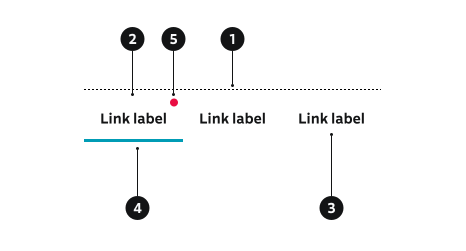
- Tab list container – Wraps the row and controls alignment, padding, and scrolling.
- Tab – A single navigation destination.
- Label – The visible tab text.
- Selection indicator – Visual cue for the active tab.
- Badge (optional) – Small indicator that can be used to indicate new or updated content or a required action.
Key NavigationTab Props
Use these props to configure the NavigationTab component.
href
URL to navigate to when the tab is clicked.
| Type | Example | Description |
|---|---|---|
string | Navigates to specified URL |
Code example
<NavigationTabList>
  <NavigationTab id="tab-1" selected href="#href">Tab 1</NavigationTab>
  <NavigationTab id="tab-2" selected href="#href">Tab 2</NavigationTab>
</NavigationTabList>
selected
Whether the tab is currently selected.
| Type | Example | Description |
|---|---|---|
boolean | Marks tab as selected |
Code example
<NavigationTabList>
  <NavigationTab id="tab-1" selected>Selected Tab</NavigationTab>
  <NavigationTab id="tab-2" selected={false}>Unselected Tab</NavigationTab>
</NavigationTabList>
badge
Whether to show a badge indicator.
| Type | Example | Description |
|---|---|---|
boolean | Shows badge indicator |
Code example
<NavigationTabList>
  <NavigationTab id="tab-1" selected badge>Tab with Badge</NavigationTab>
  <NavigationTab id="tab-2">Tab</NavigationTab>
</NavigationTabList>
removePadding
Removes padding from the tab.
| Type | Example | Description |
|---|---|---|
boolean | Removes default padding. Works only when NavigationTab is used with NavigationTabList |
Code example
<NavigationTab id="tab-1" removePadding>Tab</NavigationTab>
Key NavigationTabList Props
Use these props to configure the NavigationTabList component.
children
NavigationTab components to display.
| Type | Example | Description |
|---|---|---|
React.ReactNode | NavigationTab components |
Code example
<NavigationTabList>
  <NavigationTab id="tab-1">Tab 1</NavigationTab>
  <NavigationTab id="tab-2">Tab 2</NavigationTab>
</NavigationTabList>
align
Horizontal alignment of the tab list.
| Value | Example | Description |
|---|---|---|
start | Aligns tabs to the start (default) | |
center | Centers the tabs |
Code example
<NavigationTabList align="start">
  <NavigationTab id="tab-1">Tab 1</NavigationTab>
</NavigationTabList>
<NavigationTabList align="center">
  <NavigationTab id="tab-1">Tab 1</NavigationTab>
</NavigationTabList>
removePadding
Removes padding from all tabs.
| Type | Example | Description |
|---|---|---|
boolean | Removes padding from all tabs |
Code example
<NavigationTabList removePadding>
  <NavigationTab id="tab-1">Tab 1</NavigationTab>
</NavigationTabList>
Behavior
- Selecting a tab changes the current page/view context.
- Tabs are text-width and should not wrap; when there are many, the list should be horizontally scrollable (swipe on touch devices).
- Selected, hover, focus, pressed, and disabled states are visually distinct.
- onTabClick can be used to handle navigation (routing) consistently.
Accessibility
- Tabs must be reachable and operable with a keyboard. (WCAG 2.1.1 — Keyboard)
Implementation Examples
Tietäjä navigation
Code example
import { NavigationTabList, NavigationTab } from '@yleisradio/yds-components-react';
import { useState } from 'react';

export const TietajaNavigation = () => {
  const [selectedTab, setSelectedTab] = useState('etusivu');

  const handleTabClick = (id: string) => {
    setSelectedTab(id);
  };

  return (
    <NavigationTabList style={{ height: '48px' }} onTabClick={handleTabClick}>
      <NavigationTab id="etusivu" selected={selectedTab === 'etusivu'} href="#tietäjä-navigation">
        Etusivu
      </NavigationTab>
      <NavigationTab
        id="veikkaukset"
        selected={selectedTab === 'veikkaukset'}
        href="#tietäjä-navigation"
        badge
      >
        Veikkaukseni
      </NavigationTab>
      <NavigationTab id="kimpat" selected={selectedTab === 'kimpat'} href="#tietäjä-navigation">
        Kimpat
      </NavigationTab>
    </NavigationTabList>
  );
};
API Reference
NavigationTab Props
The NavigationTab component accepts all standard Button props in addition to the following props:
| Prop | Type | Required | Default | Description |
|---|---|---|---|---|
id | string | Yes | — | Unique identifier for the tab |
selected | boolean | No | false | Whether the tab is selected |
badge | boolean | No | false | Shows badge indicator |
removePadding | boolean | No | false | Removes default padding |
onTabClick | (id: string) => void | No | — | Callback fired when tab is clicked |
children | React.ReactNode | No | — | Tab content |
NavigationTabList Props
The NavigationTabList component accepts all standard HTML <div> attributes in addition to the following props:
| Prop | Type | Required | Default | Description |
|---|---|---|---|---|
children | React.ReactNode | Yes | — | NavigationTab components |
align | 'start' | 'center' | No | 'start' | Horizontal alignment of tabs |
removePadding | boolean | No | false | Removes padding from all tabs |
onTabClick | (id: string) => void | No | — | Callback fired when any tab is clicked |
Type Definitions
export interface NavigationTabDSProps {
  removePadding?: boolean;
  onTabClick?: (id: string) => void;
  selected?: boolean;
  badge?: boolean;
  children?: React.ReactNode;
}

export type NavigationTabProps<T extends React.ElementType> = ButtonProps<T> & NavigationTabDSProps;

export interface NavigationTabListDSProps {
  align?: 'start' | 'center';
  removePadding?: boolean;
  onTabClick?: (id: string) => void;
  children: React.ReactNode;
}

export type NavigationTabListProps = HTMLAttributes<HTMLDivElement> & NavigationTabListDSProps;
Related Components
- SectionTabs – Alternative tab component for section-based navigation
- Button – NavigationTab extends Button functionality