Notification
A Notification highlights important information inline with content or across an entire view, communicating success, warning, error, or informational status.
Code example
import { Notification } from '@yleisradio/yds-components-react';

<Notification level="info" variant="primary" title="Notification">
  Notification is used inline with other content.
</Notification>
Why to use
Notifications call attention to changes of state, validation results, or important contextual information. Messages should be short, specific, and easy to scan. To maintain their impact, display only one notification at a time in the same area. Use levels (info, success, warning, error) and variants (primary, secondary, text) consistently across your product.
When to use
Notifications are used to clearly communicate important information that requires the user’s attention, understanding, or action. They help users stay informed about system states and the results of their actions.
- Use a Notification when users need to be informed about an important state, result, or condition.
- Use it when a user action succeeds, fails, or requires correction.
- Use it when the system enters a notable state (e.g. warning, error, maintenance).
- Use it when the message must be noticed and should remain visible until acknowledged or resolved.
- Don’t use Notifications for transient or background feedback.
- Don’t use Notifications for short-lived confirmations — use a Toast instead.
- Don’t show multiple Notifications in the same area at once.
- Don’t make essential messages dismissible.
- Don’t use them for trivial or decorative content.
Differences between Notification Types
| Type | Purpose | Placement | Use case |
|---|---|---|---|
| Banner Notification | A notification covering the entire view or service (e.g., maintenance, error state). | Fixed, below the header. | “Maintenance in progress” |
| Inline Notification | A local notification within content or a form (e.g., field error). | Embedded in content. | “This field is required” |
| Toast Notification | A short-lived, automatically disappearing feedback message (e.g., save confirmation). | Floating near the bottom of the screen, sliding in and out smoothly. | “Saved successfully” |
Content Guidelines
Notification content should be easy to scan, clearly communicate what happened, and guide the user toward the next step when needed.
- Start with the key information; use a title for clarity (e.g., “Huoltokatko”).
- Keep body text short and focused on the outcome.
- Provide a clear next step when relevant (e.g., “Päivitä sivu”, “Avaa asetukset”).
- Use clear, actionable wording and action verbs when actions are available.
- Use consistent terminology and phrasing across the product.
- Use concise language and avoid unnecessary qualifiers (e.g., “Tiedosto tallennettu”).
- Use action buttons only when the user can meaningfully act.
- Allow users to dismiss non-critical notifications.
- Don’t write long paragraphs or explanatory text.
- Don’t use vague, duplicated, or filler messages.
- Don’t combine unrelated topics in a single notification.
- Don’t use jargon or language that assumes technical knowledge.
Anatomy
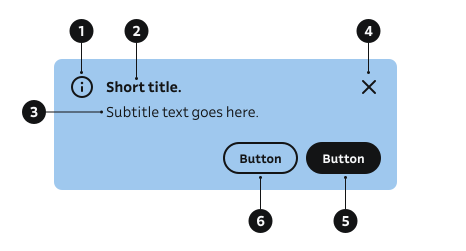
- Icon – Icon indicating the message level (info, success, warning, error).
- Title – Short heading.
- Body – Main message content.
- Close Button – Optional dismiss control that allows the user to close non-critical or informational notifications.
- Primary Button (Actions) – Main action guiding the user’s next step.
- Secondary Button (Actions) – Optional supporting or alternative action.
Key Notification Props
Use these props to configure the Notification component to fit your needs.
level
Sets semantic and visual level (icon + colors).
| Value | Example | Description |
|---|---|---|
info | General information. | Neutral informational context. |
success | Task completed. | Positive confirmation. |
warning | Check details. | Caution, requires attention soon. |
error | Action failed. | Critical or blocking issue. |
Code example
<Notification level="info">General information.</Notification>
<Notification level="success">Task completed.</Notification>
<Notification level="warning">Check details.</Notification>
<Notification level="error">Action failed.</Notification>
variant
Visual style variant. Primary and secondary typically include background; text variant is minimal.
| Value | Example | Description |
|---|---|---|
primary | Primary style. | Default style with standard emphasis. Used only with info level. |
secondary | Secondary style. | Alternate accent (lighter weight). Used only with info level. |
text | Text-only minimal. | Transparent background. |
Code example
<Notification variant="primary" title="Primary variant">Message</Notification>
<Notification variant="secondary" title="Secondary variant">Message</Notification>
<Notification variant="text" title="Text variant">Message</Notification>
title
Optional short heading preceding body.
| Type | Example | Description |
|---|---|---|
ReactNode | Upload complete Files saved. | Concise summary of message. |
Code example
<Notification title="Upload complete">Files saved.</Notification>
children (body)
Main descriptive text.
| Type | Example | Description |
|---|---|---|
ReactNode | Saved Your changes are stored. | Explains status or guidance. |
Code example
<Notification title="Saved">Your changes are stored.</Notification>
<Notification>Standalone message without title.</Notification>
hideIcon
Suppresses level icon (text/color still convey status).
| Type | Example | Description |
|---|---|---|
boolean | Plain text only. | Removes icon for very constrained spaces. |
Code example
<Notification hideIcon>Plain text only.</Notification>
isMultiline
| Type | Example | Description |
|---|---|---|
boolean | Long title that wraps across lines Detailed guidance that also wraps. | Forces title and description to separate lines. |
Code example
<Notification
  isMultiline
  title="Long title that wraps across lines"
>
  Detailed guidance that also wraps to multiple lines for clarity.
</Notification>
onClose (close button)
| Type | Example | Description |
|---|---|---|
() => void | Dismissable Close me. | If provided, displays close button at the right side. Closing the notification needs to be handled in the callback. |
Code example
const [show, setShow] = useState(true);
{show && (
  <Notification onClose={() => setShow(false)} title="Dismissable">Close me.</Notification>
)}
actions
Inline actionable elements related to the message (e.g., Retry, Undo, View details).
| Type | Example | Description |
|---|---|---|
ReactNode | Item removed You can undo this action. | Buttons placed in actions area. |
Code example
<Notification
  title="Item removed"
  actions={<Button size="xs" text="Undo" />}
>
  You can undo this action.
</Notification>
Behavior
- Notifications provide persistent, contextual feedback and remain visible until the user acknowledges the message or the related condition changes.
- Notifications appear inline with related content or across a full view, depending on context.
- They remain visible until dismissed or until the underlying state is resolved.
- Placement stays close to the content or interaction they relate to.
- Only one Notification should be shown per context to maintain focus and clarity.
- Actions, when present, are clearly labeled and consistently positioned.
- Dismissible Notifications require an explicit user action to close.
Accessibility
- Inline Notifications inherit meaning from their surrounding context and are placed visually and semantically close to the relevant content, such as directly below a form field or near an interactive element.
- Critical information should remain visible until the issue is resolved or acknowledged by the user.
- If notification appears dynamically, ensure it is announced appropriately to screen readers with
aria-live-attribute.
Implementation examples
With actions
Code example
<Notification
  level="error"
  title="Saving changes failed"
  actions={(
    <div style={{display: 'flex', gap: 8}}>
      <Button variant="secondary" size="xs" text="Dismiss" />
      <Button size="xs" text="Retry" />
    </div>
  )}
>
  Please check your network connection and try again.
</Notification>
Multiline content
Code example
<Notification
  isMultiline
  level="error"
  title="Upload failed for 3 files"
  actions={<Button size="xs" text="Retry" />}
>
  Some files exceeded size limits. Reduce file size or choose different files and try again.
</Notification>
Dismissible (controlled)
Code example
import { useState } from 'react';
import { Button, Notification } from '@yleisradio/yds-components-react';

export const DismissibleNotification = () => {
  const [show, setShow] = useState(true);
  return show ? (
    <Notification onClose={() => setShow(false)} level="success" title="Profile updated">
      Your profile information is now up to date.
    </Notification>
  ) : (
    <Button text="Show notification again" onClick={() => setShow(true)} />
  );
};
API Reference
Props
The Notification component accepts all standard HTML <div> attributes in addition to the following props:
| Prop | Type | Required | Default | Description |
|---|---|---|---|---|
children | React.ReactNode | No | — | |
title | React.ReactNode | No | — | |
level | NotificationLevel | No | 'info' | |
variant | NotificationVariant | No | 'primary' | |
hideIcon | boolean | No | — | |
isMultiline | boolean | No | — | |
onClose | () => void | No | — | |
actions | React.ReactNode | No | — |
Type Definitions
export type NotificationLevel = 'info' | 'success' | 'warning' | 'error';
export type NotificationVariant = 'primary' | 'secondary' | 'text';

export interface NotificationDSProps {
  children?: React.ReactNode;
  title?: React.ReactNode;
  level?: NotificationLevel;
  variant?: NotificationVariant;
  hideIcon?: boolean;
  isMultiline?: boolean;
  onClose?: () => void;
  actions?: React.ReactNode;
}

export type NotificationProps = Omit<HTMLAttributes<HTMLDivElement>, keyof NotificationDSProps> &
  NotificationDSProps;
Related Components
- BannerNotification – View- or service-wide announcements (sticky below header).
- Toast Notification – Short-lived floating feedback.