BottomSheet
BottomSheet displays content in a panel that slides up from the bottom of the viewport. It is optimized for mobile and touch-based interactions and can be either modal or non-modal. BottomSheet handles gestures, positioning, overlay behavior, and accessibility, and often contains a Dialog component for structured content.
Code example
import { BottomSheet, useBottomSheet, Button, Dialog } from '@yleisradio/yds-components-react';

const { bottomSheetRef, openBottomSheet, closeBottomSheet } = useBottomSheet();

<>
  <Button onClick={openBottomSheet}>Open Bottom Sheet</Button>
  <BottomSheet bottomSheetRef={bottomSheetRef}>
    <Dialog
      title="BottomSheet Title"
      actions={
        <>
          <Button text="OK" />
        </>
      }
    >
      <p>BottomSheet content goes here</p>
    </Dialog>
  </BottomSheet>
</>
Why to use
Use BottomSheet to present contextual content, actions, or settings while preserving the user’s sense of place. It provides a mobile-friendly alternative to Modal with natural touch interactions, flexible sizing, and optional non-modal behavior. BottomSheet standardizes mobile dialog behavior across YDS and ensures accessible gesture and keyboard handling.
When to use
Use BottomSheet when content is closely related to the current view and especially in mobile or touch-first contexts.
- Use BottomSheet for mobile dialogs, filters, and settings.
- Use it when content should feel lightweight and dismissible.
- Combine BottomSheet with Dialog for structured content.
- Don’t use BottomSheet for critical confirmations that require full attention.
- Don’t use BottomSheet for complex, multi-step workflows.
- Don’t replace desktop modals with BottomSheet unnecessarily.
Content Guidelines
Use these guidelines when placing content inside a BottomSheet.
- Keep content task-focused and lightweight.
- Prefer short forms and clear actions.
- Use clear completion actions such as “Done” or “Apply”.
- Don’t overload the sheet with long scrolling content unless using the expanded size.
- Don’t hide critical actions below excessive content.
- Don’t rely on drag-to-close as the only way to dismiss the sheet.
Anatomy
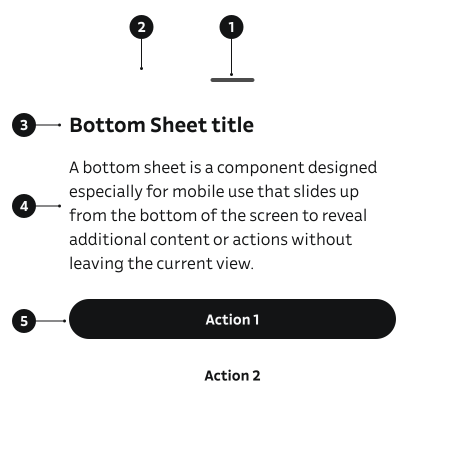
- Drag handle / close affordance – Visual indicator that the sheet can be dragged or dismissed.
- Sheet container – The surface that slides up from the bottom and contains all sheet content.
- Bottom Sheet title – Required heading that describes the purpose of the sheet.
- Content area – The main content section for text or interactive elements. Supports internal scrolling when content exceeds available height.
- Actions area (optional) – Footer area for primary and secondary actions, aligned consistently across devices.
Key BottomSheet Props
Use these props to configure the BottomSheet component.
bottomSheetRef
Ref handle for controlling the bottom sheet (open/close). Use with useBottomSheet hook.
| Type | Example | Description |
|---|---|---|
React.RefObject<BottomSheetHandle> | Ref handle for programmatic control |
Code example
const { bottomSheetRef, openBottomSheet, closeBottomSheet } = useBottomSheet();

<BottomSheet bottomSheetRef={bottomSheetRef}>
  <div>Content here</div>
  <Button onClick={closeBottomSheet}>Done</Button>
</BottomSheet>
title
Optional heading text displayed in the sheet header.
| Type | Example | Description |
|---|---|---|
string | Title text for the bottom sheet |
Code example
const { bottomSheetRef, openBottomSheet, closeBottomSheet } = useBottomSheet();

<BottomSheet title="Settings" bottomSheetRef={bottomSheetRef}>
  <div>Content here</div>
  <Button onClick={closeBottomSheet}>Done</Button>
</BottomSheet>
titleAs
HTML tag name to render for the title.
| Type | Example | Description |
|---|---|---|
string | HTML element for title (e.g., 'h2') |
Code example
const { bottomSheetRef, openBottomSheet, closeBottomSheet } = useBottomSheet();

<BottomSheet titleAs="h3" bottomSheetRef={bottomSheetRef}>
  <div>Content here</div>
  <Button onClick={closeBottomSheet}>Done</Button>
</BottomSheet>
dragToClose
Enables pointer drag gesture and handle for closing the sheet.
| Value | Example | Description |
|---|---|---|
true | Enables drag-to-close functionality | |
false | Disables drag-to-close functionality |
Code example
const { bottomSheetRef, openBottomSheet, closeBottomSheet } = useBottomSheet();

<BottomSheet dragToClose bottomSheetRef={bottomSheetRef}>
  <div>Content here</div>
  <Button onClick={closeBottomSheet}>Done</Button>
</BottomSheet>
align
Horizontal alignment of the sheet.
| Value | Example | Description |
|---|---|---|
center | Centers the sheet horizontally | |
left | Aligns sheet to the left | |
right | Aligns sheet to the right |
Code example
const { bottomSheetRef, openBottomSheet, closeBottomSheet } = useBottomSheet();

<BottomSheet align="center" bottomSheetRef={bottomSheetRef}>
  <div>Content here</div>
  <Button onClick={closeBottomSheet}>Done</Button>
</BottomSheet>
nonModal
If true, renders a non-modal dialog (no backdrop, background remains interactive).
| Value | Example | Description |
|---|---|---|
true | Makes the sheet non-modal | |
false | Makes the sheet modal |
Code example
const { bottomSheetRef, openBottomSheet, closeBottomSheet } = useBottomSheet();

<BottomSheet nonModal={true} bottomSheetRef={bottomSheetRef}>
  <div>Content here</div>
  <Button onClick={closeBottomSheet}>Done</Button>
</BottomSheet>
closeOnOutsideClick
If true, clicking outside the sheet closes it (modal only).
| Value | Example | Description |
|---|---|---|
true | Controls outside click closing behavior | |
false | Controls outside click closing behavior |
Code example
const { bottomSheetRef, openBottomSheet, closeBottomSheet } = useBottomSheet();

<BottomSheet closeOnOutsideClick={true} bottomSheetRef={bottomSheetRef}>
  <div>Content here</div>
  <Button onClick={closeBottomSheet}>Done</Button>
</BottomSheet>
size
Size variant of the bottom sheet.
| Value | Example | Description |
|---|---|---|
compact | Compact size variant | |
default | Default size variant | |
expanded | Expanded size variant |
Code example
<BottomSheet size="compact" bottomSheetRef={bottomSheetRef}>
  <Dialog title="Content">Content</Dialog>
</BottomSheet>
Behavior
- BottomSheet slides in from the bottom of the viewport and animates smoothly when opening and closing.
- The sheet opens when
openBottomSheet()is called or when the ref’sopen()method is invoked. - The sheet closes when
closeBottomSheet()is called, the close button or drag handle is activated, the Escape key is pressed, or the user drags the sheet down past the close threshold. - Drag-to-close interaction is enabled when
dragToClose={true}. If the drag distance exceeds the threshold (100px), the sheet closes; otherwise, it snaps back into place. - Modal bottom sheets (default) block background interaction and disable body scrolling.
- Non-modal bottom sheets (
nonModal={true}) allow background interaction and do not disable body scrolling. - Focus and keyboard behavior adapt based on modality.
- The Escape key always closes modal bottom sheets and closes non-modal sheets only when focus is inside the sheet.
- Clicking outside the sheet closes it only when
closeOnOutsideClick={true}and the sheet is modal. - The
onClosecallback fires after the sheet has fully closed (native dialogcloseevent). - Size variants (
compact,default,expanded) control how much vertical space the sheet initially occupies.
Accessibility
- BottomSheet uses the native HTML
<dialog>element to ensure correct semantics and screen reader support (WCAG 4.1.2 — Name, Role, Value). - Modal BottomSheets trap keyboard focus while open and prevent interaction with background content, whereas non-modal BottomSheets allow background interaction and only handle keyboard events when focus is inside the sheet.
- The sheet can always be closed using the Escape key (WCAG 2.1.1 — Keyboard).
- Drag-to-close is a supplementary interaction; keyboard and button-based closing must always be available.
Implementation Examples
Game instructions BottomSheet with Dialog
Code example
import { Button, useBottomSheet, BottomSheet, Dialog } from '@yleisradio/yds-components-react';

export const BottomSheetGameInstructions = () => {
  const { bottomSheetRef, openBottomSheet, closeBottomSheet } = useBottomSheet();

  return (
    <>
      <BottomSheet bottomSheetRef={bottomSheetRef}>
        <Dialog
          title="Peliohjeet"
          actions={
            <>
              <Button text="Sulje" onClick={closeBottomSheet} />
            </>
          }
        >
          <p>
            Pelissä tavoitteena on löytää neljä sanaryhmää, jotka muodostuvat kahdesta, kolmesta,
            neljästä tai viidestä sanasta. Jokaisen ryhmän sanoja yhdistää jokin yhteinen tekijä,
            kuten merkitys, käyttötarkoitus tai muu selkeä ominaisuus. Lisäksi pyramidin huipulle
            jää yksi sana, joka ei kuulu yhteenkään ryhmään. Tämä sana toimii ikään kuin
            ylimääräisenä haasteena ja auttaa varmistamaan, että ryhmittely on tehty oikein.
          </p>
          <p>
            Esimerkkejä mahdollisista ryhmistä ovat MATTI, TOIVO, YRJÖ, ERKKI, jotka ovat miesten
            nimiä, tai TIE, KATU, KUJA, jotka kaikki liittyvät kulkuväyliin. Ryhmät voivat vaihdella
            kooltaan, ja niiden löytäminen vaatii tarkkaavaisuutta sekä sanojen merkitysten
            pohtimista eri näkökulmista.Valitse sanat klikkaamalla niitä. Kun olet valinnut sanat,
            jotka mielestäsi kuuluvat samaan ryhmään eli samaan pyramidin kerrokseen, voit tarkistaa
            valintasi painamalla Tarkista. Jos haluat perua jonkin valinnan, klikkaa sanaa
            uudelleen, jolloin se poistuu valinnoista. Kun valittu rivi on oikein, se lukittuu
            paikalleen pyramidissa eikä sitä voi enää muuttaa.
          </p>
          <p>
            Jos peli tuntuu etenevän hankalasti, voit käyttää apuna Vihje-toimintoa. Vihjettä
            klikkaamalla saat näkyviin ensimmäisen sanan alimmasta vielä ratkaisemattomasta rivistä.
            Vihje on käytettävissä vain kolmen, neljän tai viiden sanan riveillä. Huomioithan, että
            vihjeenä saatu sana ei tule automaattisesti valituksi, vaan se täytyy klikata mukaan
            muiden sanojen tapaan.Ryhmien ratkaiseminen ei vaadi tiettyä järjestystä, vaan voit
            edetä vapaasti ja ratkaista helpoimmilta tuntuvat ryhmät ensin. Tämä antaa
            mahdollisuuden kokeilla erilaisia lähestymistapoja ja tarkentaa omaa ajattelua pelin
            edetessä.
          </p>
          <p>
            Peli sallii rajallisen määrän virheitä. Neljän väärän vastauksen jälkeen peli päättyy,
            joten jokainen tarkistus kannattaa tehdä harkiten. Tarkka lukeminen, sanojen merkitysten
            pohtiminen ja rauhallinen eteneminen auttavat pääsemään parhaaseen lopputulokseen.
          </p>
        </Dialog>
      </BottomSheet>
      <Button onClick={openBottomSheet}>Open BottomSheet</Button>
    </>
  );
};
Nickname BottomSheet with custom content
Code example
import { BottomSheet, useBottomSheet, Button, TextInput } from '@yleisradio/yds-components-react';

const { bottomSheetRef, openBottomSheet, closeBottomSheet } = useBottomSheet();

<BottomSheet bottomSheetRef={bottomSheetRef} title="Aseta itsellesi nimimerkki">
  <div>Nimimerkin pitää olla asiallinen ja noudattaa hyvää makua.</div>
  <TextInput label="Nimimerkki" placeholder="Aseta nimimerkki" />
  <Button onClick={closeBottomSheet}>Hyväksy</Button>
</BottomSheet>
API Reference
Props
The BottomSheet component accepts all standard HTML <dialog> attributes in addition to the following props:
| Prop | Type | Required | Default | Description |
|---|---|---|---|---|
bottomSheetRef | React.RefObject<BottomSheetHandle> | No | — | Ref handle for controlling the bottom sheet |
title | string | No | — | Optional heading text displayed in header |
titleAs | string | No | — | HTML tag name to render for title (e.g., 'h2') |
onClose | () => void | No | — | Callback fired after sheet closes |
dragToClose | boolean | No | true | Enables drag-to-close functionality |
align | 'center' | 'left' | 'right' | No | 'center' | Horizontal alignment of the sheet |
nonModal | boolean | No | false | Renders as non-modal dialog |
closeOnOutsideClick | boolean | No | true | Closes sheet on outside click (modal only) |
size | 'compact' | 'default' | 'expanded' | No | 'default' | Size variant of the bottom sheet |
children | React.ReactNode | No | — | Content displayed inside the sheet |
Type Definitions
export interface BottomSheetDSProps {
  bottomSheetRef?: React.RefObject<BottomSheetHandle>;
  title?: string;
  titleAs?: string;
  onClose?: () => void;
  children?: React.ReactNode;
  dragToClose?: boolean;
  align?: 'center' | 'left' | 'right';
  nonModal?: boolean;
  closeOnOutsideClick?: boolean;
  size?: 'compact' | 'default' | 'expanded';
}

export type BottomSheetProps = HTMLAttributes<HTMLDialogElement> & BottomSheetDSProps;

export type BottomSheetHandle = {
  open: () => void;
  close: () => void;
};
useBottomSheet Hook
The useBottomSheet hook provides a convenient way to manage bottom sheet state.
Returns
| Property | Type | Description |
|---|---|---|
bottomSheetRef | React.RefObject<BottomSheetHandle> | Ref object to pass to the BottomSheet component |
openBottomSheet | () => void | Function to open the bottom sheet |
closeBottomSheet | () => void | Function to close the bottom sheet |