Modal
Modal displays content in a centered overlay that blocks interaction with the underlying interface until the user completes or dismisses the task. Modal is responsible for overlay, focus management, keyboard handling, and scroll behavior, and it typically contains a Dialog component for structured content.
Code example
import { Modal, useModal, Dialog, Button, Dialog } from '@yleisradio/yds-components-react';

const { modalRef, openModal, closeModal } = useModal();

<>
  <Button onClick={openModal}>Open Modal</Button>
  <Modal modalRef={modalRef}>
    <Dialog
      title="Modal Title"
      actions={
        <>
          <Button variant="text" text="Cancel" onClick={closeModal} />
          <Button text="OK" onClick={closeModal} />
        </>
      }
    >
      <p>Modal content goes here</p>
    </Dialog>
  </Modal>
</>
Why to use
Use Modal when you need to interrupt the user’s current flow to request a decision, confirmation, or focused input. Modal ensures consistent overlay behavior, focus trapping, keyboard interaction, and accessibility across all dialog-based interfaces in YDS. It standardizes how blocking dialogs behave and prevents common accessibility and usability issues related to custom modal implementations.
When to use
Use Modal when the user must complete or explicitly dismiss a task before continuing.
- Use Modal for confirmations, critical information, and forms that require focused attention.
- Use Modal together with Dialog to structure content consistently.
- Use Modal for desktop and tablet experiences.
- Don’t use Modal for non-critical or purely informational content.
- Don’t use Modal for mobile-first interactions — use BottomSheet instead.
- Don’t stack or nest modals.
Content Guidelines
Use these guidelines when placing content inside a Modal. They apply especially when Modal contains a Dialog.
- Ensure the modal has a clear title describing the task.
- Keep content concise and focused on a single goal.
- Use clear primary and secondary actions.
- Don’t overload the modal with long or multi-step flows.
- Don’t include unnecessary secondary content.
- Don’t use vague action labels like “OK” or “Kyllä”.
Anatomy
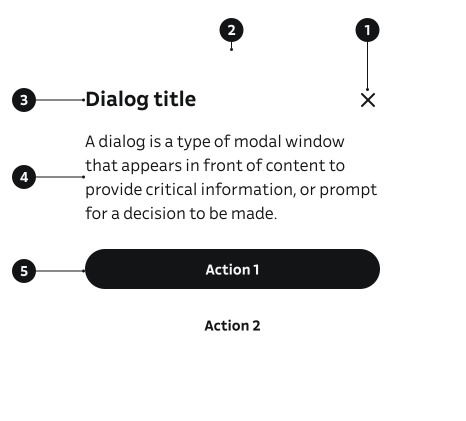
A modal dialog is composed of two distinct parts: the Modal and the Dialog. Together they form a complete, accessible modal dialog pattern where responsibilities are clearly separated between container behavior and content structure.
Modal
- Close button – Optional control used to dismiss the modal.
- Modal container – The surface that holds the dialog content and visually separates it from the backdrop while managing focus and interaction.
Dialog
- Dialog title – Required heading that communicates the purpose of the modal.
- Content area – The main content section for text, forms, or other components. Supports internal scrolling when content overflows.
- Actions area – Optional footer containing one or more action buttons, typically a primary and a secondary action.
Key Modal Props
Use these props to configure the Modal component.
modalRef
Ref handle for controlling the modal (open/close). Use with useModal hook.
| Type | Example | Description |
|---|---|---|
React.RefObject<ModalHandle> | Ref handle for programmatic control |
Code example
const { modalRef, openModal, closeModal } = useModal();

<Modal modalRef={modalRef}>
  <div>Content here</div>
  <Button onClick={closeModal}>Close</Button>
</Modal>
scrollBehavior
Scroll behavior for the modal content.
| Value | Example | Description |
|---|---|---|
content | Restricts scrolling to modal content (default) | |
body | Allows entire page to scroll |
Code example
const { modalRef, openModal, closeModal } = useModal();
<Modal scrollBehavior="content" modalRef={modalRef}>
  <div>Content here</div>
  <Button onClick={closeModal}>Close</Button>
</Modal>
<Modal scrollBehavior="body" modalRef={modalRef}>
  <div>Content here</div>
  <Button onClick={closeModal}>Close</Button>
</Modal>
Behavior
- Modal opens when openModal() is called or when the ref’s open() method is invoked.
- Modal closes when closeModal() is called, the close button is clicked, or the Escape key is pressed.
- While open, Modal blocks interaction with background content and traps focus within the modal.
- Body scroll is disabled by default (scrollBehavior="content") to prevent background scrolling, and the page scroll position is preserved when the modal opens.
- Clicking the backdrop does not close the modal by default (native
<dialog>behavior). - The onClose callback fires when the modal’s close event is triggered.
Accessibility
- Uses native
<dialog>semantics
(WCAG 4.1.2 — Name, Role, Value) - Supports keyboard interaction and Escape key closing
(WCAG 2.1.1 — Keyboard) - Modal sheets trap focus; non-modal sheets respect background interaction.
Implementation Examples
Email verification Modal with Dialog
Code example
import { Button, Modal, Dialog, useModal } from '@yleisradio/yds-components-react';
import { IllustrativeMail } from '@yleisradio/yds-icons-react';

export const ModalEmailVerification = () => {
  const { modalRef, openModal, closeModal } = useModal();

  return (
    <>
      <Modal modalRef={modalRef}>
        <Dialog
          title="Vahvista sähköpostiosoitteesi"
          illustrativeIcon={<IllustrativeMail />}
          actions={
            <>
              <Button text="Avaa sähköposti" onClick={closeModal} />
            </>
          }
        >
          Olemme lähettäneet vahvistusviestin osoitteeseen etunimi.sukunimi@example.com. Avaa
          sähköposti ja seuraa ohjeita.{' '}
          <strong>Tarkista myös roskapostikansio, jos viestiä ei näy.</strong>
        </Dialog>
      </Modal>
      <Button onClick={openModal}>Open Modal</Button>
    </>
  );
};
Nickname Modal with custom content
Code example
import { Modal, useModal, Button, TextInput } from '@yleisradio/yds-components-react';

export const ModalSetNickName = () => {
  const { modalRef, openModal, closeModal } = useModal();

  return (
    <>
      <Modal modalRef={modalRef}>
        <div
          style={{
            padding: '2rem 1.5rem 1.5rem',
            display: 'flex',
            flexDirection: 'column',
            gap: '1rem',
            width: '100%',
          }}
        >
          <h2 style={{ margin: 0 }}>Aseta itsellesi nimimerkki</h2>
          <div>Nimimerkin pitää olla asiallinen ja noudattaa hyvää makua.</div>
          <TextInput label="Nimimerkki" placeholder="Aseta nimimerkki" />
          <Button onClick={closeModal}>Hyväksy</Button>
        </div>
      </Modal>
      <Button onClick={openModal}>Open Modal</Button>
    </>
  );
};
API Reference
Props
The Modal component accepts all standard HTML <dialog> attributes in addition to the following props:
| Prop | Type | Required | Default | Description |
|---|---|---|---|---|
modalRef | React.RefObject<ModalHandle> | No | — | Ref handle for controlling the modal |
onClose | () => void | No | — | Callback fired when modal closes |
scrollBehavior | 'content' | 'body' | No | 'content' | Scroll behavior for modal content |
children | React.ReactNode | No | — | Content displayed inside the modal |
Type Definitions
export interface ModalDSProps {
  modalRef?: React.RefObject<ModalHandle>;
  onClose?: () => void;
  children?: React.ReactNode;
  scrollBehavior?: 'content' | 'body';
}

export type ModalProps = HTMLAttributes<HTMLDialogElement> & ModalDSProps;

export type ModalHandle = {
  open: () => void;
  close: () => void;
};
useModal Hook
The useModal hook provides a convenient way to manage modal state.
Returns
| Property | Type | Description |
|---|---|---|
modalRef | React.RefObject<ModalHandle> | Ref object to pass to the Modal component |
openModal | () => void | Function to open the modal |
closeModal | () => void | Function to close the modal |
Related Components
- Dialog – Often used inside Modal for content structure
- BottomSheet – Alternative component for mobile-friendly modals
- useModal – Hook for managing modal state